


WA Department of Commerce - Outlook Web App
To access your email from home or a remote location, use the Outlook Web App. (opens in a new window)
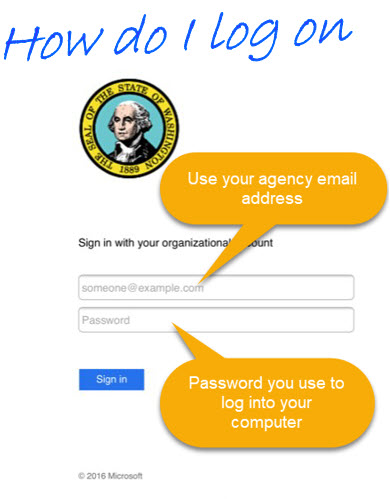
Remote access tips
Use your full agency email address and network password when signing in.
What's New?
Multi-Factor Authentication (MFA)
Similar to bank login verification, Outlook Web Access (OWA) requires verification through Multi-Factor Authentication. Follow the MFA setup instructions.
Before you begin
- Have your mobile phone ready to receive a call, text message, or authenticator notification.
- Know your full agency email address and network password.
- Be prepared to complete the setup in one sitting to avoid verification lockouts.
- Open https://aka.ms/mfasetup, as listed in the official MFA files
Sign-in Screen Changes
You will no longer be able to select Use Outlook Web App Light
or Private Computer
.
Users will be logged out after 30 minutes of inactivity.
Step-by-step instructions
- Open the Outlook Web App Instructions PDF (your browser may preview or download it).
- Review the document using your browser's PDF viewer or a PDF application.
- Follow each step to complete your Outlook Web App setup.
Need help?
For assistance, contact Commerce Customer Service:
Disclaimer
Commerce and staff are not responsible for personal computer devices unless they are provided by the agency. This page is intended to assist you in resolving issues related to accessing OWA. Use at your own risk.